KinesteX v2.12.0: Low-power mode detection before a workout, UI bug fixes, improved client-side error handling
In this release, we:
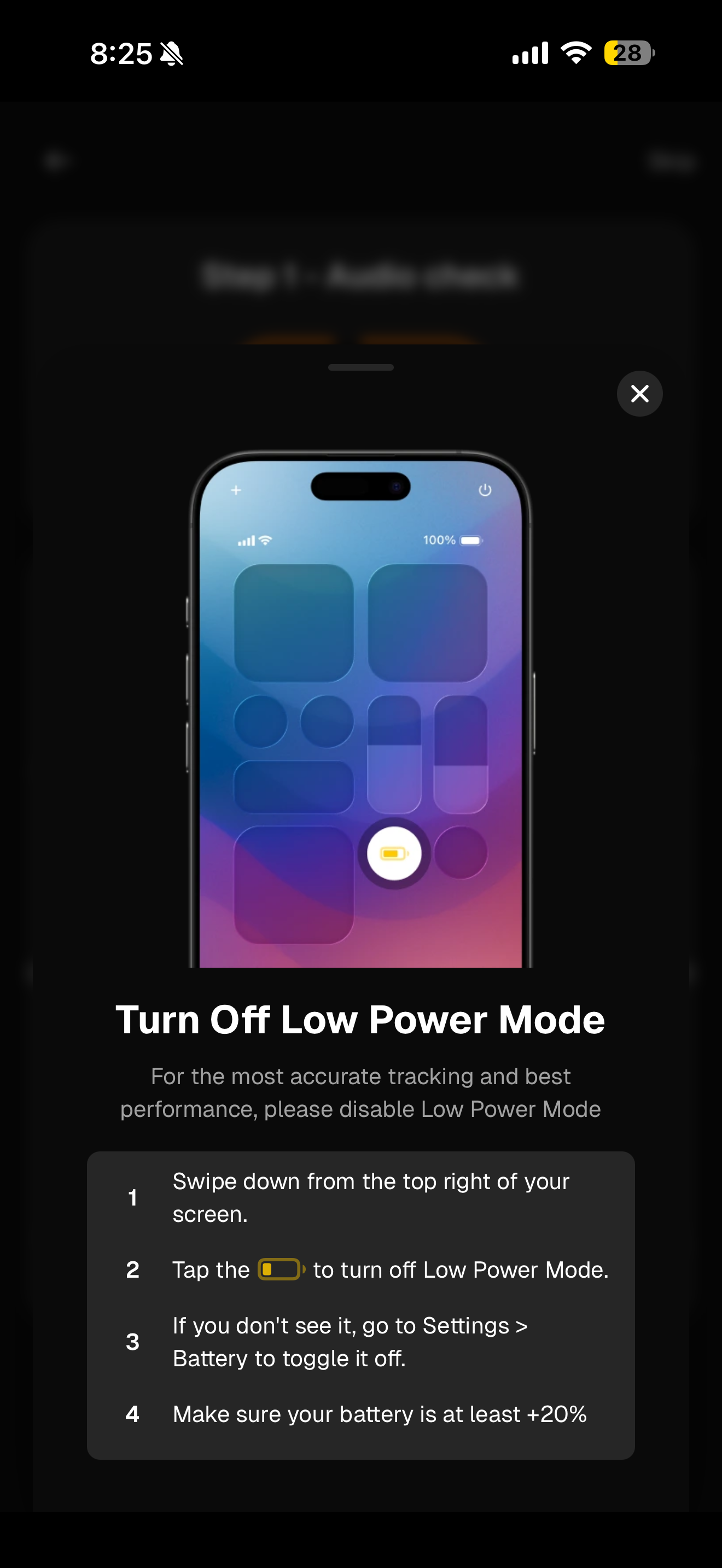
Warn iOS users about low-power mode before starting a workout to prevent video/network issues
Fix layout issues in desktop silhouette check
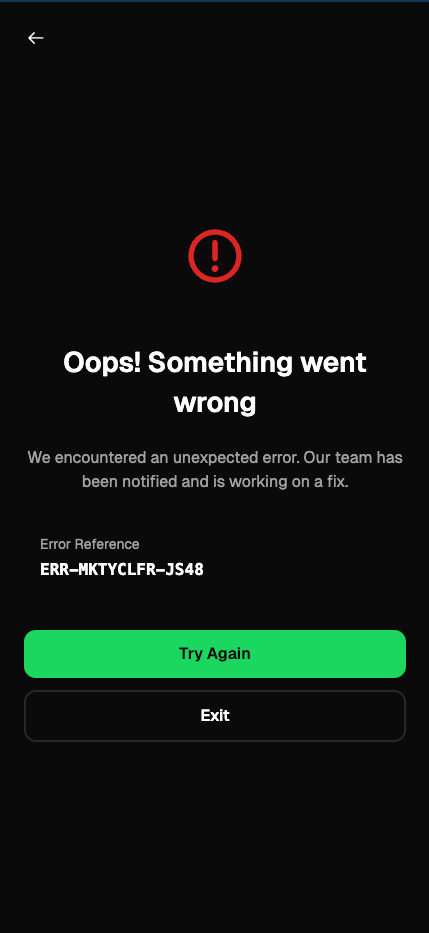
Improve the error screen so it’s easier to recover from problems
Add a badge when AI tracking is disabled for challenges and assessments, so users understand how their workout will run and can re-enable it
Low-power mode prompt on iOS
Before starting a workout on iOS, in both phone orientation and the audio check screen, we now show a pop-up dialog if the device is in low-power mode.
Low-power mode can negatively affect network requests and video playback, which leads to a worse workout experience. To reduce these issues, we recommend that users turn off low-power mode before they begin.
This dialog is only a suggestion:
It is fully optional
Users can dismiss it
Once dismissed, it will not appear again for the rest of the session
Desktop layout fix for silhouette check
We fixed layout issues in desktop mode on the silhouette check page shown at the start of a workout.
This should make it easier for users to position themselves correctly and see all visual elements without overlap or misalignment.
More helpful error boundary screen
We improved the client-side error boundary screen to make recovery from unexpected issues simpler and clearer.
Now, when an error occurs, users can:
Restart the last activity they were on, or
Exit the KinesteX page
This reduces dead ends and helps users quickly get back to their workout or safely exit.
AI tracking status badge for challenges and assessments
For challenges and assessments, we added a small badge that appears when AI tracking is disabled.
This helps in two ways:
It informs users that the workout will proceed without AI tracking (for example, if camera access was denied at the start of the workout)
It provides a clear path to re-enable tracking via settings on subsequent launches
This ensures users understand why AI feedback might be missing and can easily restore full functionality if they choose.